分类: Linux

  • 阿里云云服务器跨区域完美迁移

    三年前双十一撸了一台阿里云服务器,马上到期,所以今年双十一又撸了一个三年的。换服务器比续费还要便宜,所以如果不麻烦当然就直接换了,加量不加价。

    步骤还是很简单的,但是不知道为什么当时提交工单问相关事情回答的是不可以,因为跨区域了,可能遇到的客服不熟悉业务吧。事实是完全可以,而且目前新服务器已经运行蛮久了,旧的关机进入赎回期了。现在没有详细的截图步骤,仅记录一下大致的步骤。

    旧服务器情况是只有系统盘(CentOS),没有单独的数据盘。涉及到数据盘可能大致差不多吧,但未验证过。下面回忆一下相关步骤:

    1、旧服务器控制台创建“自定义镜像”,这里涉及到保存快照,可能会收取到部分费用,根据快照大小及使用时间计算,我充值了一块钱没用完。当天完成可能就不会产生费用吧?

    2、共享镜像给购买新服务器的账号,如果即时数据多且重要需要停止掉旧服务器,避免迁移导致部分数据丢失;

    3、新账号服务器如果没有跨区域,可以直接使用自定义镜像来更换新服务器系统,如果跨区域,涉及到复制镜像,从区域一复制到区域二,然后再重装系统。

    4、镜像复制完成后,服务器中涉及到的业务比如网站重新解析到新服务器即可。

    至此,完美无缝迁移,整个过程并不复杂,大家都可以的。

    阿里云服务器新用户特惠>>

  • centos8中docker使用阿里云镜像加速服务

    上一篇docker安装因为篇幅过长,这里单独介绍怎么使用阿里云镜像加速服务,搜了一圈,网上的教程很多太老了,还有的说阿里云操作文档没有说明白,装了没用。装之前可以通过命令docker info查看是否添加了阿里云镜像加速链接,每个用户的链接地址应该是不一样的,注意核实自己的是否正确。

    首先说明,在centos8中默认情况下是这样的:

    • /etc/sysconfig/下面没有docker目录或文件,这应该还是centos6的设置方法。
    • /etc/docker/下面默认只有一个key.json,是没有daemon.json的,设置加速服务时可以自动创建。centos7中可能安装好docker默认就有吧,没有测试。

    然后具体说下操作方法:

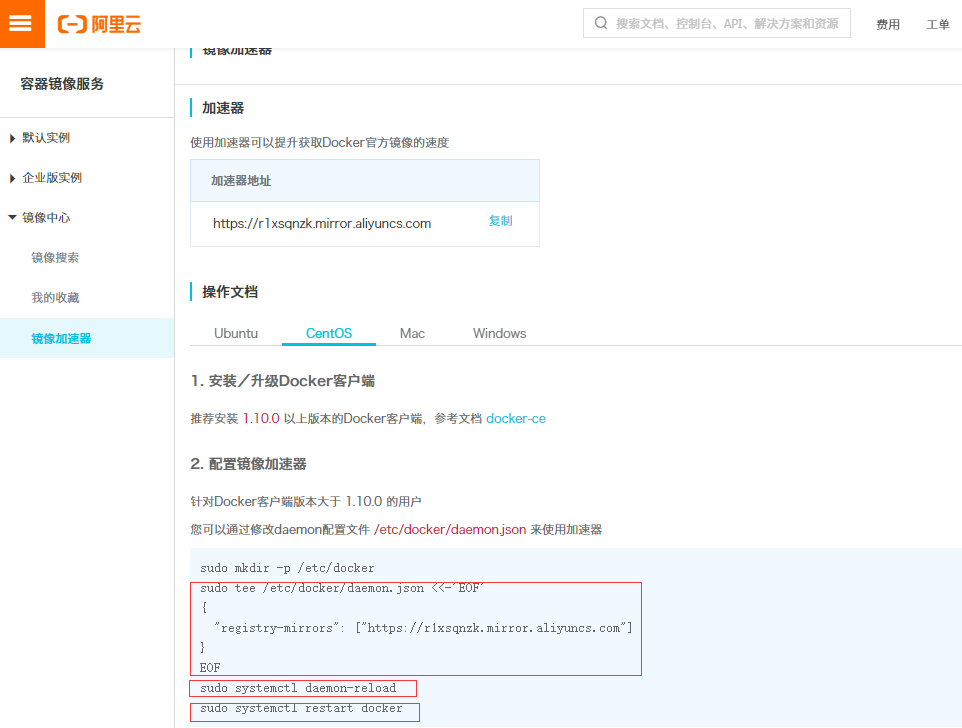
    登录阿里云进入控制台点击左上角菜单图标-产品与服务-容器镜像服务-镜像中心-镜像加速器,选择centos就会有对应的操作文档。

    • 第一行可以省略,因为目录本来存在,不用再创建,按照执行也无所谓。
    • 复制第2-6行(下图第一个红框)中命令运行,会自动创建daemon.json文件。
    • 复制第7行(下图第二个红框)命令运行,重新加载配置文件。
    • 复制第8行(下图第三个红框)命令运行,重启docker服务。
    $ sudo tee /etc/docker/daemon.json <<-'EOF'
    > {
    >   "registry-mirrors": ["https://r1xsqnzk.mirror.aliyuncs.com"]
    > }
    > EOF
    {
      "registry-mirrors": ["https://r1xsqnzk.mirror.aliyuncs.com"]
    }
    $ sudo systemctl daemon-reload
    $ sudo systemctl restart docker

    至此,运行一下docker info可以查看到出现了阿里云的加速链接。但是,到这里还没有结束的。可以使用docker pull拉取镜像试一下,肯定会报如下错误:

    $ sudo docker pull tomacat
    Using default tag: latest
    Error response from daemon: pull access denied for tomacat, repository does not exist or may require 'docker login': denied: requested access to the resource is denied

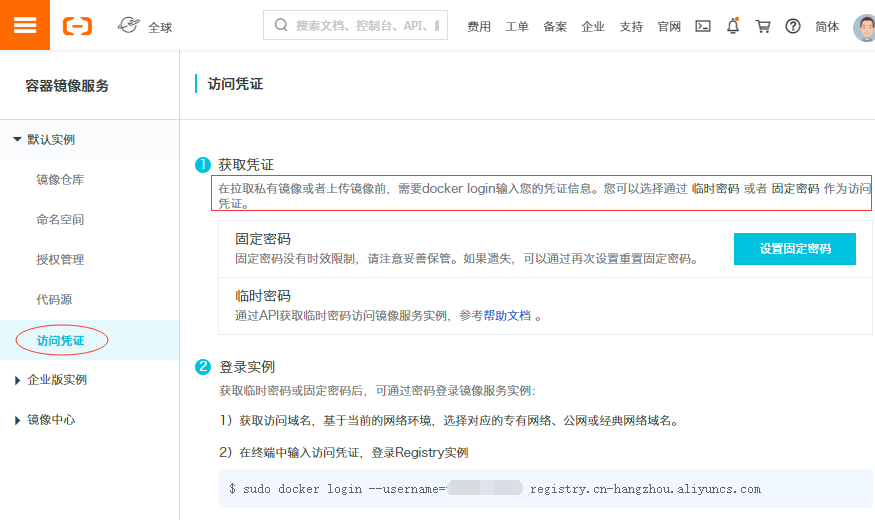
    为什么呢?修改之前下载虽然慢了点,但终归不会错误,改了之后居然直接用不了了,很显然,配置还没有成功。还有关键的一步——访问凭证,如下:

    $ sudo docker login --username=阿里云用户名 registry.cn-hangzhou.aliyuncs.com
    Password:(输入设置的固定密码或临时密码)
    WARNING! Your password will be stored unencrypted in /root/.docker/config.json.
    Configure a credential helper to remove this warning. See
    https://docs.docker.com/engine/reference/commandline/login/#credentials-store
    
    Login Succeeded

    然后再拉取镜像,成功了,并且速度确实还是快不少,647M的tomcat两分钟不到就完成了

    $ sudo docker pull tomcat
    Using default tag: latest
    latest: Pulling from library/tomcat
    e9afc4f90ab0: Pull complete
    989e6b19a265: Pull complete
    af14b6c2f878: Pull complete
    5573c4b30949: Pull complete
    fb1a405f128d: Pull complete
    612a9f566fdc: Pull complete
    cf63ebed1142: Pull complete
    fbb20561cd50: Pull complete
    e99c920870d7: Pull complete
    b7f793f2be47: Pull complete
    Digest: sha256:81c2a95e5b1b5867229d75255abe54928d505deb81c8ff8949b61fde1a5d30a1
    Status: Downloaded newer image for tomcat:latest
    docker.io/library/tomcat:latest

    这样,阿里云镜像加速服务就配置成功了。

  • 第一次安装Docker全过程记录

    Docker我目前的理解就相当于现在Windows上使用的VMware,只不过还是有很大区别的,主要在于VMware包括硬件一起虚拟化了,Docker并没有,所以更精简灵活吧。但这个理解肯定是特别片面的,不管如何,Linux运维学习过程中Docker是不可缺少的一部分。

    对比之前的zabbix安装,虽然安装步骤少了几步,但是入手起来要麻烦一下,主要是官网没有中文界面支持的原因吧,所以略显麻烦。但是不能怕麻烦,因为英语也是必过的一关吧。

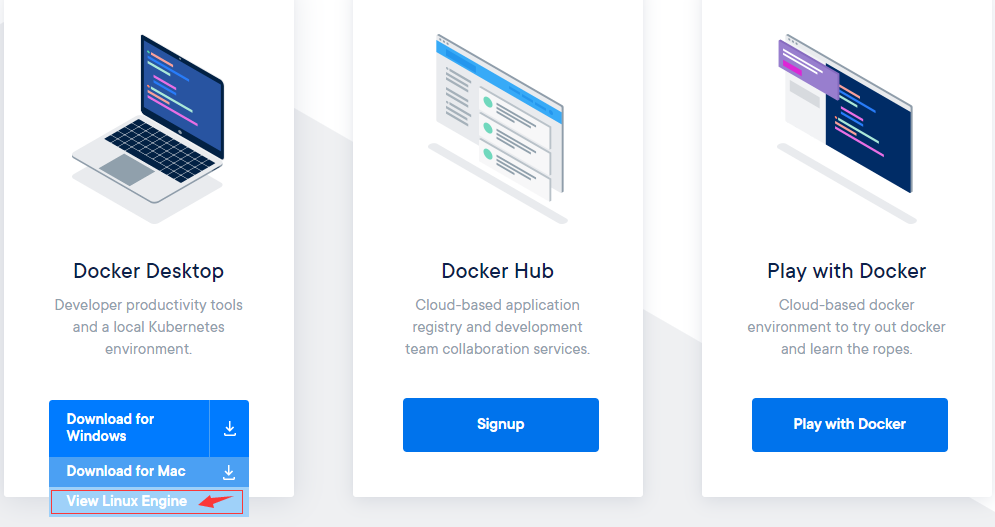
    Get Started

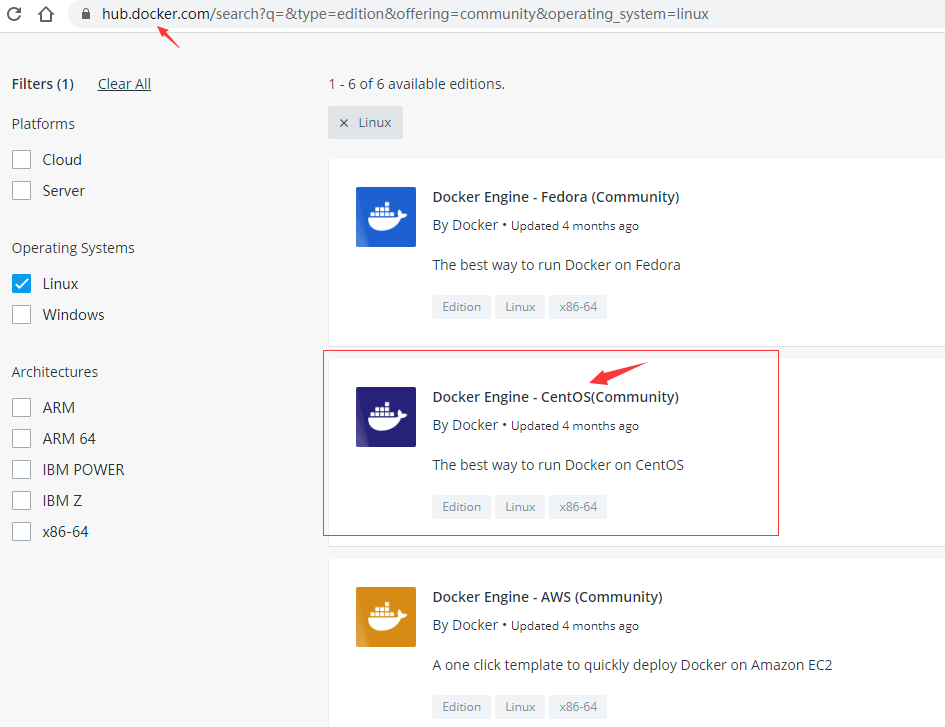
    点击“View Linux Engine”会跳转到docker hub网站,类似于GitHub吧,或者理解为应用商店?AppStore?目前我是这样理解的。这个界面有不同Linux系统对应的docker版本,对应进去就可以了。

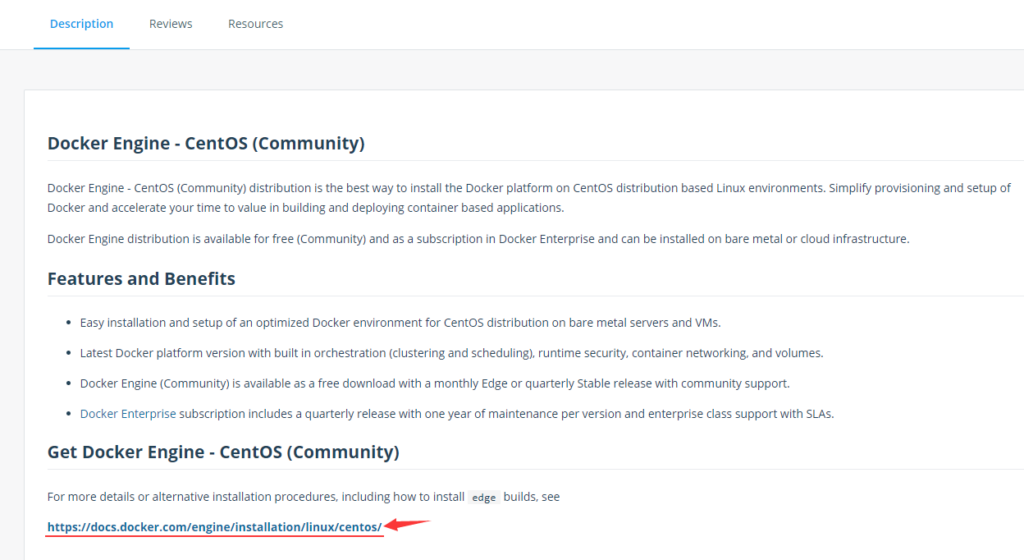
    对于docker有一个简单的描述,然后进入文档说明安装。

    https://docs.docker.com/engine/install/centos/

    我使用的环境是centos8,尝试使用dnf替换yum试一试(可以按照官网使用yum直接运行的),如果使用的是root用户不用sudo。注意$符号后面的才是命令,其它属于执行后出现的内容。

    $ sudo dnf config-manager --add-repo https://download.docker.com/linux/centos/docker-ce.repo
    添加仓库自:https://download.docker.com/linux/centos/docker-ce.repo
    $ dnf info docker-ce
    可安装的软件包
    名称         : docker-ce
    时期         : 3
    版本         : 19.03.11
    发布         : 3.el7
    架构         : x86_64
    大小         : 24 M
    源           : docker-ce-19.03.11-3.el7.src.rpm
    仓库         : docker-ce-stable
    概况         : The open-source application container engine
    URL          : https://www.docker.com
    协议         : ASL 2.0
    描述         : Docker is a product for you to build, ship and run any
                 : application as a lightweight container.
                 :
                 : Docker containers are both hardware-agnostic and
                 : platform-agnostic. This means they can run anywhere, from your
                 : laptop to the largest cloud compute instance and everything in
                 : between - and they don't require you to use a particular
                 : language, framework or packaging system. That makes them great
                 : building blocks for deploying and scaling web apps, databases,
                 : and backend services without depending on a particular stack or
                 : provider.
    $ sudo dnf install docker-ce docker-ce-cli containerd.io
    错误:
     问题: package docker-ce-3:19.03.11-3.el7.x86_64 requires containerd.io >= 1.2.2-3, but none of the providers can be installed
      - cannot install the best candidate for the job
      - package containerd.io-1.2.10-3.2.el7.x86_64 is excluded
      - package containerd.io-1.2.13-3.1.el7.x86_64 is excluded
      - package containerd.io-1.2.13-3.2.el7.x86_64 is excluded
      - package containerd.io-1.2.2-3.3.el7.x86_64 is excluded
      - package containerd.io-1.2.2-3.el7.x86_64 is excluded
      - package containerd.io-1.2.4-3.1.el7.x86_64 is excluded
      - package containerd.io-1.2.5-3.1.el7.x86_64 is excluded
      - package containerd.io-1.2.6-3.3.el7.x86_64 is excluded
    (尝试添加 '--skip-broken' 来跳过无法安装的软件包 或 '--nobest' 来不只使用最佳选择的软件包)

    这里出现一个错误,意思是containerd.io的版本太低了,我晕,这是官方提供的repo,为什么里面的containerd.io版本还是1.2.0呢?这里的解决办法大概就是另外单独安装containerd.io的高版本,或者指定docker版本来降低一下安装版本。

    https://forums.docker.com/t/docker-ce-on-centos-8/81648

    https://blog.csdn.net/qq_36643282/article/details/105190759

    $ sudo dnf -y install https://download.docker.com/linux/centos/7/x86_64/stable/Packages/containerd.io-1.2.6-3.3.el7.x86_64.rpm
    依赖关系解决。
    ================================================================================
     软件包              架构   版本                             仓库          大小
    ================================================================================
    安装:
     containerd.io       x86_64 1.2.6-3.3.el7                    @commandline  26 M
    升级:
     audit               x86_64 3.0-0.13.20190507gitf58ec40.el8  base         252 k
     audit-libs          x86_64 3.0-0.13.20190507gitf58ec40.el8  base         116 k
     policycoreutils     x86_64 2.9-3.el8_1.1                    base         377 k
    安装依赖关系:
     container-selinux   noarch 2:2.124.0-1.module_el8.1.0+298+41f9343a
                                                                 AppStream     47 k
     checkpolicy         x86_64 2.9-1.el8                        base         348 k
     policycoreutils-python-utils
                         noarch 2.9-3.el8_1.1                    base         250 k
     python3-audit       x86_64 3.0-0.13.20190507gitf58ec40.el8  base          85 k
     python3-libsemanage x86_64 2.9-1.el8                        base         127 k
     python3-policycoreutils
                         noarch 2.9-3.el8_1.1                    base         2.2 M
     python3-setools     x86_64 4.2.2-1.el8                      base         600 k
    启用模块流:
     container-tools            rhel8
    
    事务概要
    ================================================================================
    安装  8 软件包
    升级  3 软件包
    
    总计:30 M
    总下载:4.4 M
    下载软件包:
    (1/10): policycoreutils-python-utils-2.9-3.el8_ 1.6 MB/s | 250 kB     00:00
    (2/10): checkpolicy-2.9-1.el8.x86_64.rpm        1.8 MB/s | 348 kB     00:00
    (3/10): container-selinux-2.124.0-1.module_el8. 242 kB/s |  47 kB     00:00
    (4/10): python3-audit-3.0-0.13.20190507gitf58ec 1.2 MB/s |  85 kB     00:00
    (5/10): python3-setools-4.2.2-1.el8.x86_64.rpm  8.3 MB/s | 600 kB     00:00
    (6/10): python3-libsemanage-2.9-1.el8.x86_64.rp 832 kB/s | 127 kB     00:00
    (7/10): python3-policycoreutils-2.9-3.el8_1.1.n 9.7 MB/s | 2.2 MB     00:00
    (8/10): audit-3.0-0.13.20190507gitf58ec40.el8.x 1.4 MB/s | 252 kB     00:00
    (9/10): audit-libs-3.0-0.13.20190507gitf58ec40. 843 kB/s | 116 kB     00:00
    (10/10): policycoreutils-2.9-3.el8_1.1.x86_64.r 3.4 MB/s | 377 kB     00:00
    --------------------------------------------------------------------------------
    总计                                            3.4 MB/s | 4.4 MB     00:01
    运行事务检查
    事务检查成功。
    运行事务测试
    事务测试成功。
    运行事务
      准备中  :                                                                 1/1
      运行脚本: audit-libs-3.0-0.13.20190507gitf58ec40.el8.x86_64               1/1
      升级    : audit-libs-3.0-0.13.20190507gitf58ec40.el8.x86_64              1/14
      升级    : policycoreutils-2.9-3.el8_1.1.x86_64                           2/14
      运行脚本: policycoreutils-2.9-3.el8_1.1.x86_64                           2/14
      安装    : python3-audit-3.0-0.13.20190507gitf58ec40.el8.x86_64           3/14
      安装    : python3-setools-4.2.2-1.el8.x86_64                             4/14
      安装    : python3-libsemanage-2.9-1.el8.x86_64                           5/14
      安装    : checkpolicy-2.9-1.el8.x86_64                                   6/14
      安装    : python3-policycoreutils-2.9-3.el8_1.1.noarch                   7/14
      安装    : policycoreutils-python-utils-2.9-3.el8_1.1.noarch              8/14
      运行脚本: container-selinux-2:2.124.0-1.module_el8.1.0+298+41f9343a.n    9/14
      安装    : container-selinux-2:2.124.0-1.module_el8.1.0+298+41f9343a.n    9/14
      运行脚本: container-selinux-2:2.124.0-1.module_el8.1.0+298+41f9343a.n    9/14
      安装    : containerd.io-1.2.6-3.3.el7.x86_64                            10/14
      运行脚本: containerd.io-1.2.6-3.3.el7.x86_64                            10/14
      升级    : audit-3.0-0.13.20190507gitf58ec40.el8.x86_64                  11/14
      运行脚本: audit-3.0-0.13.20190507gitf58ec40.el8.x86_64                  11/14
      运行脚本: audit-3.0-0.10.20180831git0047a6c.el8.x86_64                  12/14
      清理    : audit-3.0-0.10.20180831git0047a6c.el8.x86_64                  12/14
      运行脚本: audit-3.0-0.10.20180831git0047a6c.el8.x86_64                  12/14
      运行脚本: policycoreutils-2.9-3.el8.x86_64                              13/14
      清理    : policycoreutils-2.9-3.el8.x86_64                              13/14
      清理    : audit-libs-3.0-0.10.20180831git0047a6c.el8.x86_64             14/14
      运行脚本: container-selinux-2:2.124.0-1.module_el8.1.0+298+41f9343a.n   14/14
      运行脚本: audit-libs-3.0-0.10.20180831git0047a6c.el8.x86_64             14/14
      验证    : container-selinux-2:2.124.0-1.module_el8.1.0+298+41f9343a.n    1/14
      验证    : checkpolicy-2.9-1.el8.x86_64                                   2/14
      验证    : policycoreutils-python-utils-2.9-3.el8_1.1.noarch              3/14
      验证    : python3-audit-3.0-0.13.20190507gitf58ec40.el8.x86_64           4/14
      验证    : python3-libsemanage-2.9-1.el8.x86_64                           5/14
      验证    : python3-policycoreutils-2.9-3.el8_1.1.noarch                   6/14
      验证    : python3-setools-4.2.2-1.el8.x86_64                             7/14
      验证    : containerd.io-1.2.6-3.3.el7.x86_64                             8/14
      验证    : audit-3.0-0.13.20190507gitf58ec40.el8.x86_64                   9/14
      验证    : audit-3.0-0.10.20180831git0047a6c.el8.x86_64                  10/14
      验证    : audit-libs-3.0-0.13.20190507gitf58ec40.el8.x86_64             11/14
      验证    : audit-libs-3.0-0.10.20180831git0047a6c.el8.x86_64             12/14
      验证    : policycoreutils-2.9-3.el8_1.1.x86_64                          13/14
      验证    : policycoreutils-2.9-3.el8.x86_64                              14/14
    
    已升级:
      audit-3.0-0.13.20190507gitf58ec40.el8.x86_64
      audit-libs-3.0-0.13.20190507gitf58ec40.el8.x86_64
      policycoreutils-2.9-3.el8_1.1.x86_64
    
    已安装:
      containerd.io-1.2.6-3.3.el7.x86_64
      container-selinux-2:2.124.0-1.module_el8.1.0+298+41f9343a.noarch
      checkpolicy-2.9-1.el8.x86_64
      policycoreutils-python-utils-2.9-3.el8_1.1.noarch
      python3-audit-3.0-0.13.20190507gitf58ec40.el8.x86_64
      python3-libsemanage-2.9-1.el8.x86_64
      python3-policycoreutils-2.9-3.el8_1.1.noarch
      python3-setools-4.2.2-1.el8.x86_64
    
    完毕!
    
    $ containerd -v
    containerd containerd.io 1.2.6 894b81a4b802e4eb2a91d1ce216b8817763c29fb
    $ sudo dnf install -y docker-ce docker-ce-cli
    Repository AppStream is listed more than once in the configuration
    Repository extras is listed more than once in the configuration
    Repository PowerTools is listed more than once in the configuration
    Repository centosplus is listed more than once in the configuration
    上次元数据过期检查:0:03:36 前,执行于 2020年06月11日 星期四 00时42分55秒。
    依赖关系解决。
    ================================================================================
     软件包            架构       版本                   仓库                  大小
    ================================================================================
    安装:
     docker-ce         x86_64     3:19.03.11-3.el7       docker-ce-stable      24 M
     docker-ce-cli     x86_64     1:19.03.11-3.el7       docker-ce-stable      38 M
    安装依赖关系:
     libcgroup         x86_64     0.41-19.el8            base                  70 k
    
    事务概要
    ================================================================================
    安装  3 软件包
    
    总下载:62 M
    安装大小:263 M
    确定吗?[y/N]: y
    下载软件包:
    (1/3): libcgroup-0.41-19.el8.x86_64.rpm         408 kB/s |  70 kB     00:00
    (2/3): docker-ce-19.03.11-3.el7.x86_64.rpm      1.6 MB/s |  24 MB     00:14
    (3/3): docker-ce-cli-19.03.11-3.el7.x86_64.rpm  418 kB/s |  38 MB     01:33
    --------------------------------------------------------------------------------
    总计                                            682 kB/s |  62 MB     01:33
    警告:/var/cache/dnf/docker-ce-stable-091d8a9c23201250/packages/docker-ce-19.03.11-3.el7.x86_64.rpm: 头V4 RSA/SHA512 Signature, 密钥 ID 621e9f35: NOKEY
    Docker CE Stable - x86_64                       647  B/s | 1.6 kB     00:02
    导入 GPG 公钥 0x621E9F35:
     Userid: "Docker Release (CE rpm) <docker@docker.com>"
     指纹: 060A 61C5 1B55 8A7F 742B 77AA C52F EB6B 621E 9F35
     来自: https://download.docker.com/linux/centos/gpg
    确定吗?[y/N]: y
    导入公钥成功
    运行事务检查
    事务检查成功。
    运行事务测试
    事务测试成功。
    运行事务
      准备中  :                                                                 1/1
      安装    : docker-ce-cli-1:19.03.11-3.el7.x86_64                           1/3
      运行脚本: docker-ce-cli-1:19.03.11-3.el7.x86_64                           1/3
      运行脚本: libcgroup-0.41-19.el8.x86_64                                    2/3
      安装    : libcgroup-0.41-19.el8.x86_64                                    2/3
      运行脚本: libcgroup-0.41-19.el8.x86_64                                    2/3
      安装    : docker-ce-3:19.03.11-3.el7.x86_64                               3/3
      运行脚本: docker-ce-3:19.03.11-3.el7.x86_64                               3/3
      验证    : libcgroup-0.41-19.el8.x86_64                                    1/3
      验证    : docker-ce-3:19.03.11-3.el7.x86_64                               2/3
      验证    : docker-ce-cli-1:19.03.11-3.el7.x86_64                           3/3
    
    已安装:
      docker-ce-3:19.03.11-3.el7.x86_64    docker-ce-cli-1:19.03.11-3.el7.x86_64
      libcgroup-0.41-19.el8.x86_64
    
    完毕!
    $ sudo systemctl start docker
    $ systemctl status docker
    $ sudo docker run hello-world
    Unable to find image 'hello-world:latest' locally
    docker: Error response from daemon: Get https://registry-1.docker.io/v2/library/hello-world/manifests/latest: Get https://auth.docker.io/token?scope=repository%3Alibrary%2Fhello-world%3Apull&service=registry.docker.io: net/http: request canceled (Client.Timeout exceeded while awaiting headers).
    See 'docker run --help'.

    安装完毕,拉取hello world镜像失败。注意看错误提示,这里应该是国外网络不稳定得原因吧,再试一次就可以了。

    $ sudo docker run hello-world
    Unable to find image 'hello-world:latest' locally
    latest: Pulling from library/hello-world
    0e03bdcc26d7: Pull complete
    Digest: sha256:d58e752213a51785838f9eed2b7a498ffa1cb3aa7f946dda11af39286c3db9a9
    Status: Downloaded newer image for hello-world:latest
    
    Hello from Docker!
    This message shows that your installation appears to be working correctly.
    
    To generate this message, Docker took the following steps:
     1. The Docker client contacted the Docker daemon.
     2. The Docker daemon pulled the "hello-world" image from the Docker Hub.
        (amd64)
     3. The Docker daemon created a new container from that image which runs the
        executable that produces the output you are currently reading.
     4. The Docker daemon streamed that output to the Docker client, which sent it
        to your terminal.
    
    To try something more ambitious, you can run an Ubuntu container with:
     $ docker run -it ubuntu bash
    
    Share images, automate workflows, and more with a free Docker ID:
     https://hub.docker.com/
    
    For more examples and ideas, visit:
     https://docs.docker.com/get-started/

    或者改为使用阿里云镜像加速服务后再试,因篇幅过长单独写了一篇:centos8中docker使用阿里云镜像加速服务

    另外阿里云还有repo仓库的镜像源可以设置。可以跳过。

    $ cd /etc/yum.repos.d/
    $ sudo mv docker-ce.repo docker-ce.repo.bak
    $ sudo dnf config-manager --add-repo https://mirrors.aliyun.com/docker-ce/linux/centos/docker-ce.repo
    $ dnf clean all
    $ dnf makecache
    $ sudo systemctl restart docker

    其它错误(如下)解析:这里因为是非root用户,所以必须加sudo,不然会出现如下错误。

    $ docker images
    Got permission denied while trying to connect to the Docker daemon socket at unix:///var/run/docker.sock: Get http://%2Fvar%2Frun%2Fdocker.sock/v1.40/images/json: dial unix /var/run/docker.sock: connect: permission denied

    最后,据了解centos8开始默认用podman替代docker,大致了解了一下,目前可能docker还是主流吧。学会了docker,podman应该也差不多吧。

    国外这些logo还是挺有意思的,挺形象的。podman的优势可能就是连docker中的鲸鱼船都省略了,直接是一只只的海豹在海里。那直接就把大海当容器咯。看起来是不是就更厉害。

    $ dnf info podman
    Repository AppStream is listed more than once in the configuration
    Repository extras is listed more than once in the configuration
    Repository PowerTools is listed more than once in the configuration
    Repository centosplus is listed more than once in the configuration
    上次元数据过期检查:0:53:00 前,执行于 2020年06月11日 星期四 04时14分11秒。
    可安装的软件包
    名称         : podman
    版本         : 1.6.4
    发布         : 4.module_el8.1.0+298+41f9343a
    架构         : x86_64
    大小         : 12 M
    源           : podman-1.6.4-4.module_el8.1.0+298+41f9343a.src.rpm
    仓库         : AppStream
    概况         : Manage Pods, Containers and Container Images
    URL          : https://podman.io/
    协议         : ASL 2.0
    描述         : podman (Pod Manager) is a fully featured container engine that is a simple
                 : daemonless tool.  podman provides a Docker-CLI comparable command line that eases
                 : the transition from other container engines and allows the management of pods,
                 : containers and images.  Simply put: alias docker=podman.  Most podman commands
                 : can be run as a regular user, without requiring additional privileges.
                 :
                 : podman uses Buildah(1) internally to create container images. Both tools share
                 : image (not container) storage, hence each can use or manipulate images (but not
                 : containers) created by the other.
                 :
                 : Manage Pods, Containers and Container Images
                 : libpod Simple management tool for pods, containers and images
    
  • 第一次安装zabbix5.0全过程记录

    首次接触,首先这个词Zabbix有点儿拗口,英语菜鸟级恼火啊,有道翻译又没有这个词的发音,不知道怎么读,最后发现bix有发音,zab就跟lab一样来读吧,/zæb/,就“泽波比克斯”吧。

    官网:

    https://www.zabbix.com/cn/

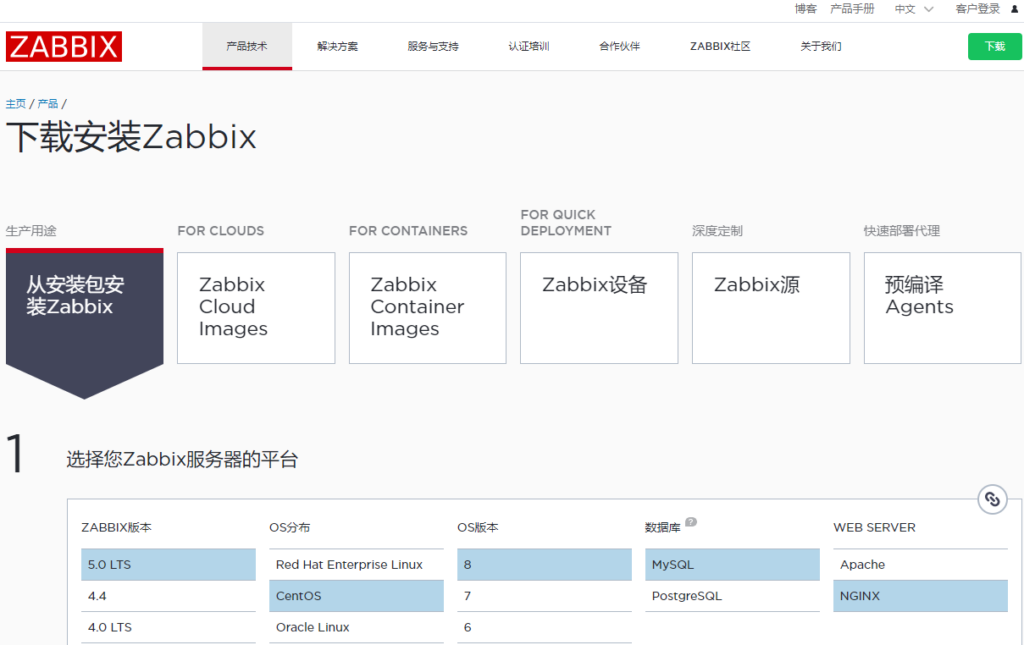
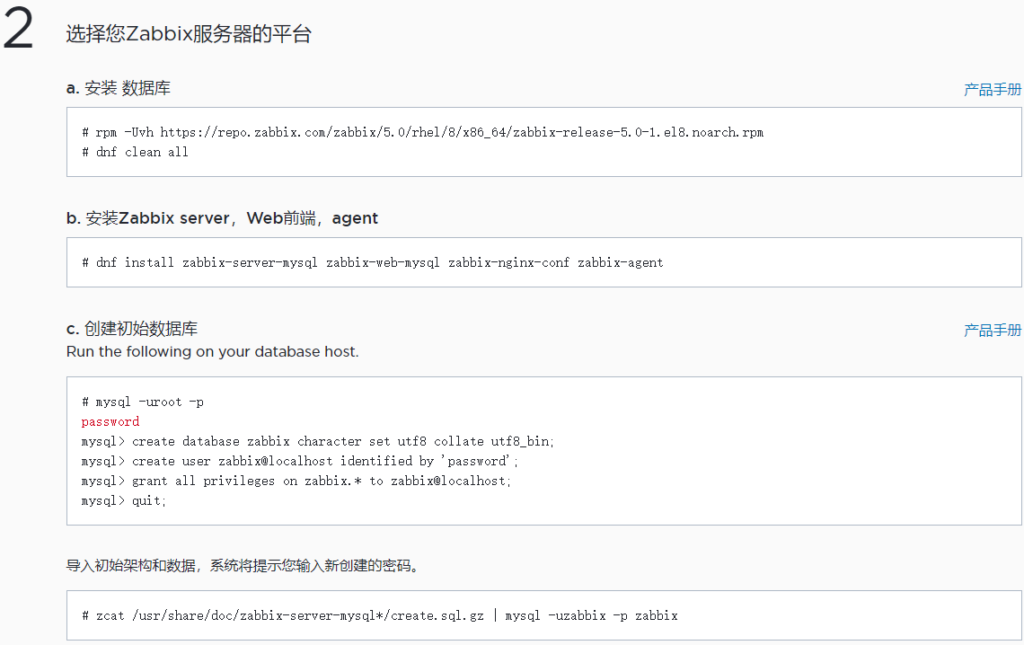
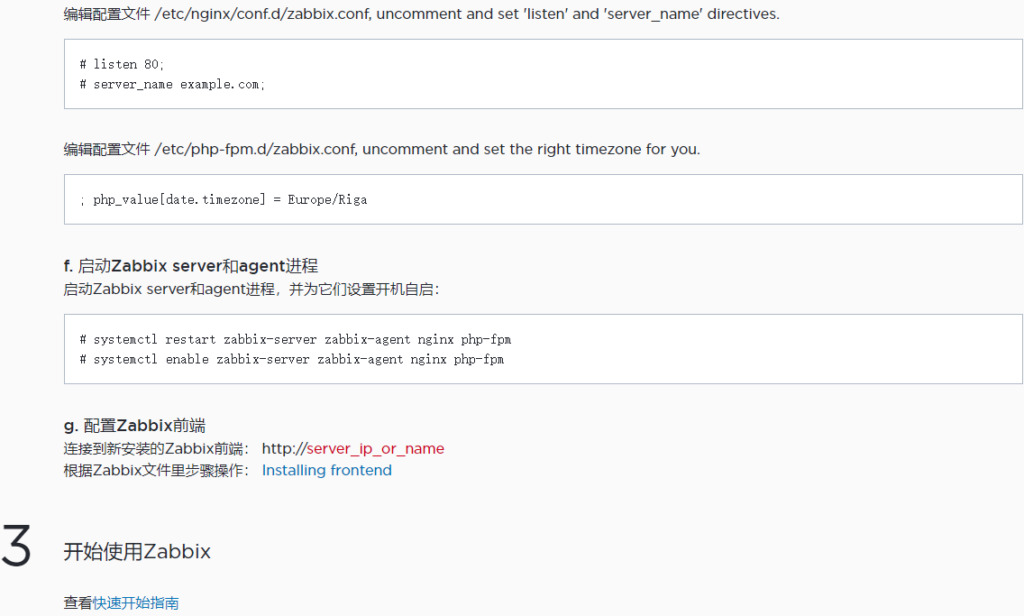
    直接有中文界面还是挺不错的,至少说明挺重视中国区用户的。站点用户体验也好,直接右上角“下载”,选择自己的环境后,所有的安装步骤都一目了然了,都没什么可说的了,如图。

    a. 安装 数据库
    # rpm -Uvh https://repo.zabbix.com/zabbix/5.0/rhel/8/x86_64/zabbix-release-5.0-1.el8.noarch.rpm
    # dnf clean all
    
    b. 安装Zabbix server,Web前端,agent
    # dnf install zabbix-server-mysql zabbix-web-mysql zabbix-nginx-conf zabbix-agent
    
    c. 创建初始数据库
    Run the following on your database host.
    
    # mysql -uroot -p
    password
    mysql> create database zabbix character set utf8 collate utf8_bin;
    mysql> create user zabbix@localhost identified by 'password';
    mysql> grant all privileges on zabbix.* to zabbix@localhost;
    mysql> quit;
    导入初始架构和数据,系统将提示您输入新创建的密码。
    
    # zcat /usr/share/doc/zabbix-server-mysql*/create.sql.gz | mysql -uzabbix -p zabbix
    
    d. 为Zabbix server配置数据库
    编辑配置文件 /etc/zabbix/zabbix_server.conf
    
    DBPassword=password
    e. 为Zabbix前端配置PHP
    编辑配置文件 /etc/nginx/conf.d/zabbix.conf, uncomment and set 'listen' and 'server_name' directives.
    
    # listen 80;
    # server_name example.com;
    编辑配置文件 /etc/php-fpm.d/zabbix.conf, uncomment and set the right timezone for you.
    
    ; php_value[date.timezone] = Europe/Riga
    f. 启动Zabbix server和agent进程
    启动Zabbix server和agent进程,并为它们设置开机自启:
    
    # systemctl restart zabbix-server zabbix-agent nginx php-fpm
    # systemctl enable zabbix-server zabbix-agent nginx php-fpm
    g. 配置Zabbix前端
    连接到新安装的Zabbix前端: http://server_ip_or_name
    根据Zabbix文件里步骤操作: Installing frontend

    详细安装步骤都有了,那就重点记下安装步骤中的如果出现的错误及解决方法吧。说明一下,这里使用root用户来安装,普通用户估计错误就更多了,第一次还是交给root。

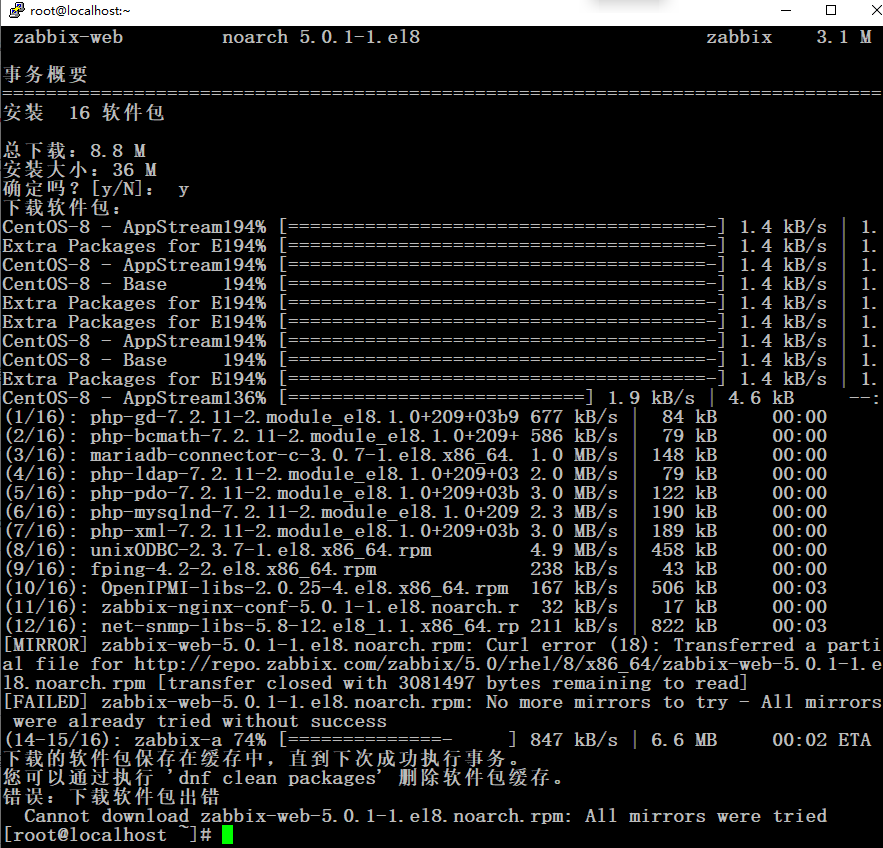
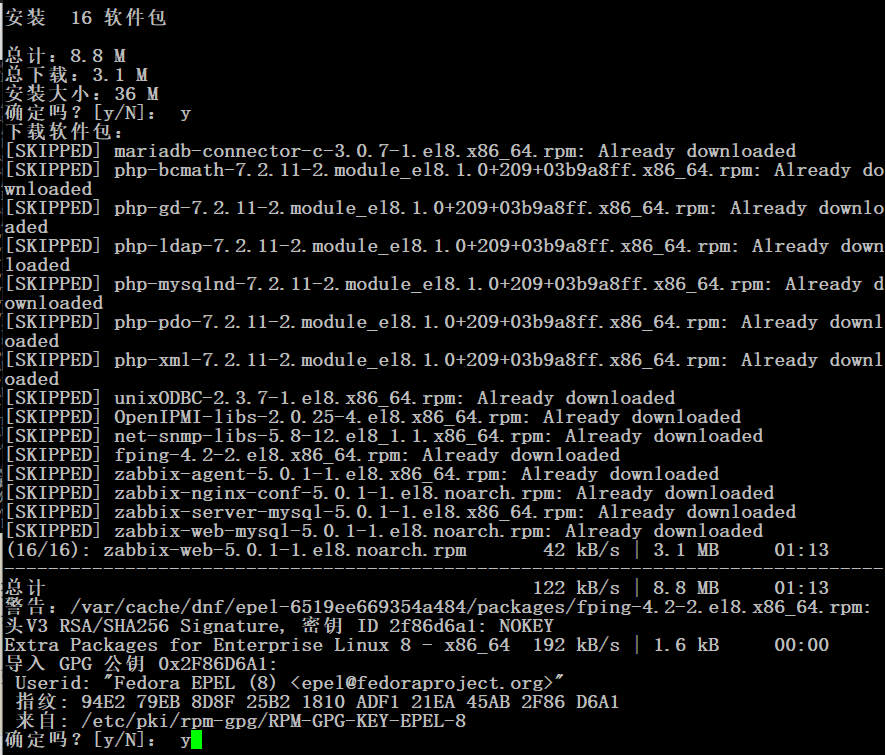
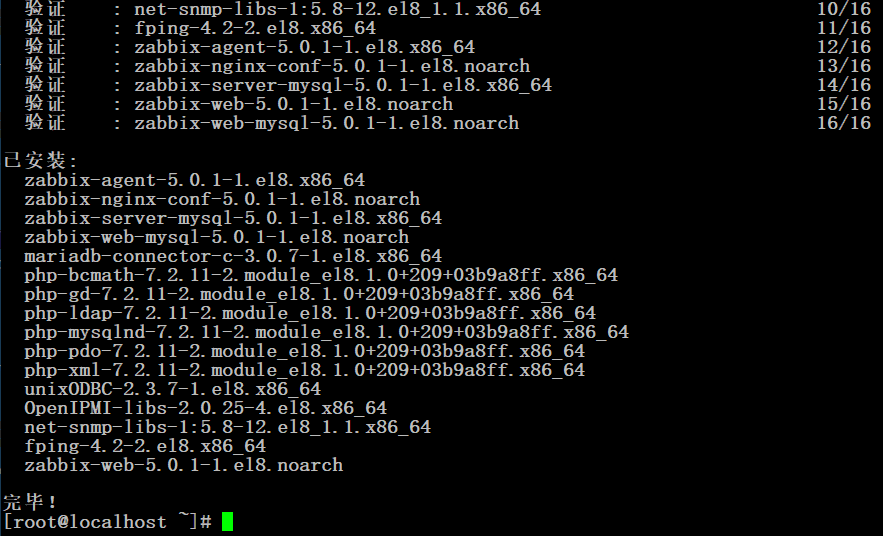
    错误一:下载软件包出错,步骤b未顺利完成。

    根据错误提示,应该是网络问题,仔细观察每次可以到70%多出错,所以步骤b安装命令多尝试几次就可以解决。接下来输入几个y就可以顺利完成。

    至此步骤b完成。

    错误二、步骤c进入MySQL操作,又是一个小错误,password部分为新设置的密码。不能过于简单。如果默认不改就会报错如下图,因为密码太简单了。

    补充:根据下面的经验,如果php版本低于7.3,这里语句可以加一句,如下:

    mysql> create user zabbix@localhost identified by 'password';//最后的password改成复杂一点的密码。
    
    mysql> create user zabbix@localhost identified WITH mysql_native_password by 'password'; //改后

    然后执行步骤c的最后一步导入数据,这里要输入前一步设置的密码。

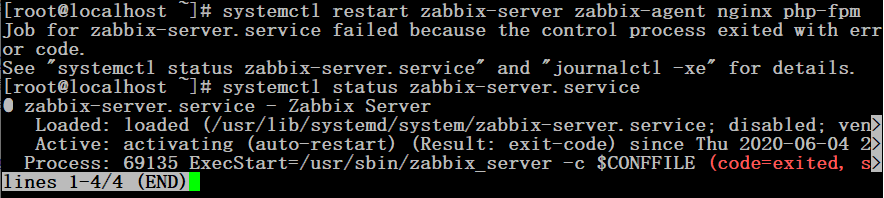
    错误三:重启进程时报错,说明前面哪个配置出现了问题。

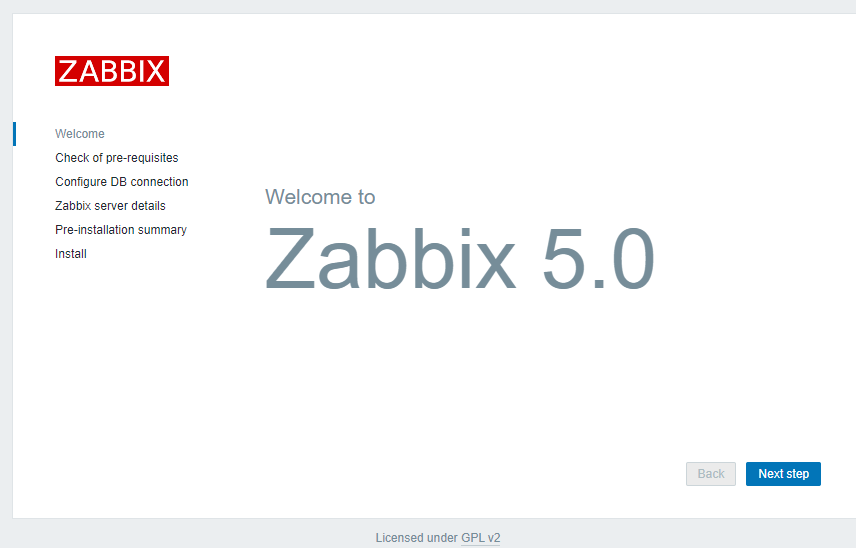
    但是,此时打开配置时的url地址,zabbix的安装界面可以正常显示的。不知道哪里出了问题咯。

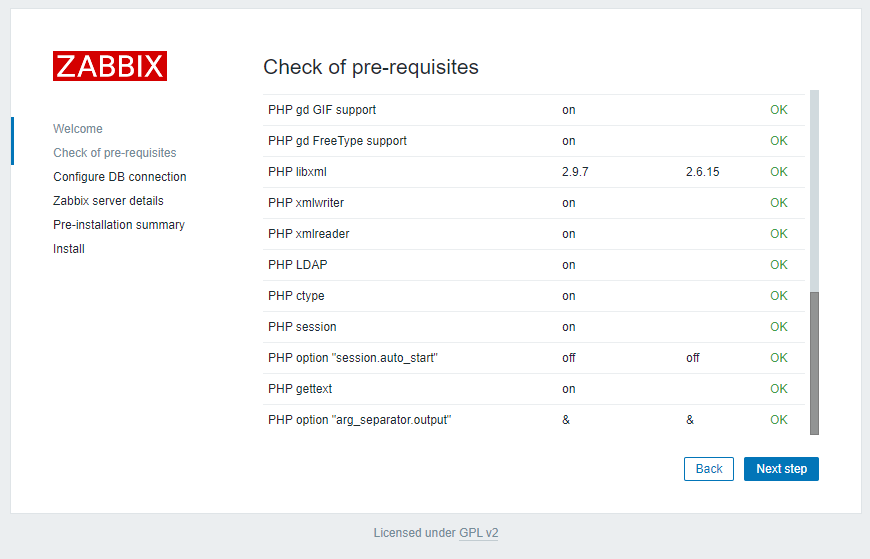
    检查,全部OK。

    根据错误提示,找了一下原因,首先定位到可能是防火墙或者SELinux的原因,查看firewalld状态是开启的,临时stop,再运行依旧错误,然后重启firewalld,因为与它是无关的了。再临时关闭SELinux,使用命令setenforce 0临时关闭,再次运行正常,没有错误提示了。就是它的原因了。

    # systemctl status firewalld
    # systemctl restart zabbix-server zabbix-agent nginx php-fpm
    依然报错
    # systemctl start firewalld
    # getenforce
    # setenforce 0
    # systemctl restart zabbix-server zabbix-agent nginx php-fpm
    正常启动,继续完成步骤f
    # systemctl enable zabbix-server zabbix-agent nginx php-fpm
    到这里基本上就结束了,再配置前端,步骤g

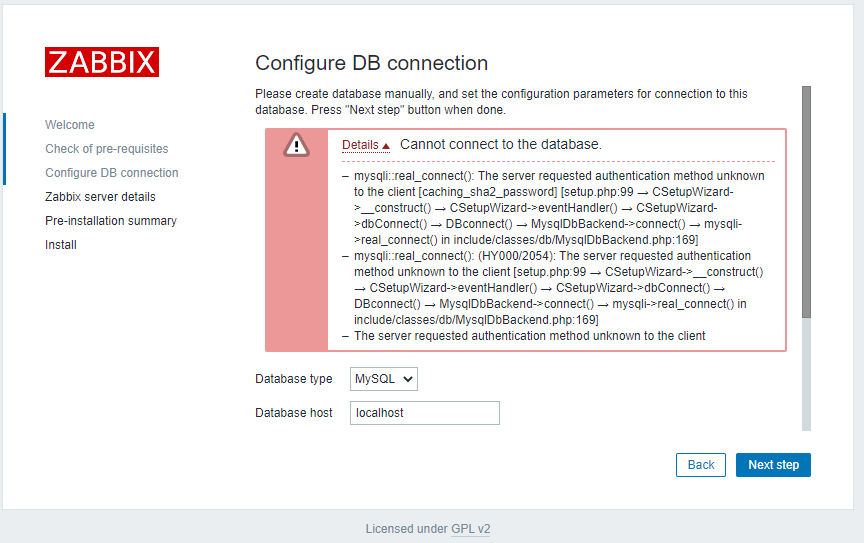
    错误四:数据库连接失败

    Details Cannot connect to the database.
    mysqli::real_connect(): The server requested authentication method unknown to the client [caching_sha2_password] [setup.php:99 → CSetupWizard->__construct() → CSetupWizard->eventHandler() → CSetupWizard->dbConnect() → DBconnect() → MysqlDbBackend->connect() → mysqli->real_connect() in include/classes/db/MysqlDbBackend.php:169]
    mysqli::real_connect(): (HY000/2054): The server requested authentication method unknown to the client [setup.php:99 → CSetupWizard->__construct() → CSetupWizard->eventHandler() → CSetupWizard->dbConnect() → DBconnect() → MysqlDbBackend->connect() → mysqli->real_connect() in include/classes/db/MysqlDbBackend.php:169]
    The server requested authentication method unknown to the client

    错误关键信息caching_sha2_password,这是因为mysql8以上验证方法发生了改变,而php7.2还不支持,大概有两种修改方法:

    • 最好的可能还是直接升级php吧,不过就相对麻烦一点。
    • 或者修改MySQL的验证方法,回到以前的验证方法,需要在 MySQL 的配置文件 my.cnf 中,设置 default_authentication_plugin=mysql_native_password,但既然选择升级版本中放弃肯定有其道理的,所以觉得最好还是更新php吧。
    • 这里暂时按方法二来改,有时间再升级php。

    https://www.php.net/manual/zh/mysqli.requirements.php

    # vi /etc/my.cnf    //可以找到mysql_native_password这句,去掉前面的#号就可以保存了。
    # systemctl restart mysqld php-fpm    //到这里还是不行,因为之前创建的数据库用户信息没有更改
    # mysql -uroot -p    //登录数据库root用户
    password
    mysql> use mysql;
    Reading table information for completion of table and column names
    You can turn off this feature to get a quicker startup with -A
    
    Database changed
    mysql> SELECT Host, User, plugin from user; 
    +-----------+------------------+-----------------------+
    | Host      | User             | plugin                |
    +-----------+------------------+-----------------------+
    | localhost | mysql.infoschema | caching_sha2_password |
    | localhost | mysql.session    | caching_sha2_password |
    | localhost | mysql.sys        | caching_sha2_password |
    | localhost | root             | caching_sha2_password |
    | localhost | zabbix           | caching_sha2_password |
    +-----------+------------------+-----------------------+
    5 rows in set (0.00 sec)
    mysql> ALTER USER 'zabbix'@'localhost' IDENTIFIED WITH mysql_native_password BY 'password';
    mysql> SELECT Host, User, plugin from user;
    +-----------+------------------+-----------------------+
    | Host      | User             | plugin                |
    +-----------+------------------+-----------------------+
    | localhost | mysql.infoschema | caching_sha2_password |
    | localhost | mysql.session    | caching_sha2_password |
    | localhost | mysql.sys        | caching_sha2_password |
    | localhost | root             | caching_sha2_password |
    | localhost | zabbix           | mysql_native_password |
    +-----------+------------------+-----------------------+
    5 rows in set (0.00 sec)
    mysql> quit;
    Bye
    # systemctl restart mysqld php-fpm

    这样就可以继续下一步了。

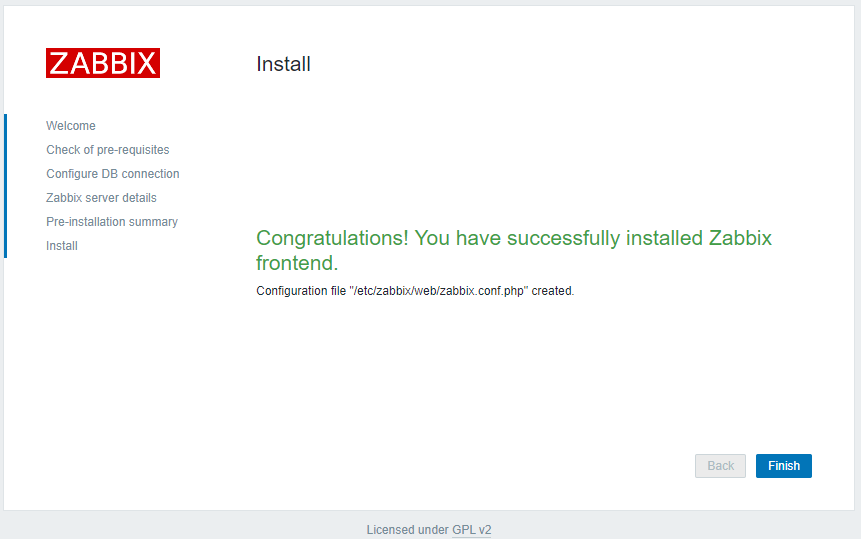
    successfully

    完成就进入登录界面,这里还有最后一个错误五:

    登录用户默认为Admin/zabbix,一定要注意是区分大小写的,用户名Admin,admin进不去的哦。

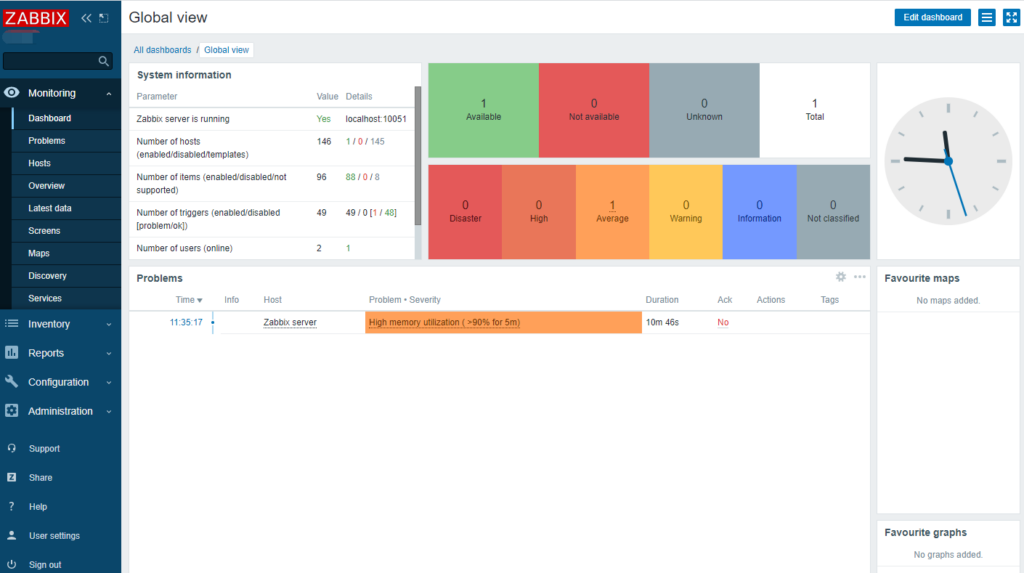
    登录成功主界面
  • 自建服务器环境lnmp后遇到的问题

    centos最小安装,lnmp整个安装过程就跳过了,之前都有演示的。这里主要记录一下后续过程中出现的一些问题。

    安装注意事项

    一般需要临时关闭防火墙,重启服务器后会失效,但不喜欢直接禁用,但是如果防火墙没关闭,lnmp环境就访问不了,所以要研究一下防火墙,放行80端口就可以了。

    # systemctl stop firewalld //临时关闭防火墙,重启失效,不建议禁用
    # firewall-cmd --zone=public --add-port=80/tcp --permanent //放行80端口

    新建用户权限问题。

    以前一直直接用root用户,但考虑到安全性及多人使用的情况,还是要习惯不用root,但是新建的用户即使加入了管理组,但使用sudo时,提示不在sudoer列表,解决方法有好几种,但感觉都不是很靠谱,最后选择修改/etc/sudoers文件,在root下加上想授权的用户名即可,如下。

    ## Allow root to run any commands anywhere
    root    ALL=(ALL)       ALL
    lpthw    ALL=(ALL)       ALL

    注意:直接使用vi修改要强制保存wq!,或者使用visudo命令来修改更方面,正常保存退出即可。

    composer安装

    现在很多的php框架都使用composer来安装,因为centos是最小化安装,composer默认肯定没有的,要自己动手安装,安装其实很简单,关键是中间可能会出现一些错误要动手解决。

    • 因为composer依赖于PHP,所以可能一些php扩展需要安装,如提示中会出现openssl,php-json,一一安装好就可以了。
    • composer命令可以正常使用后,并不代表后面的所有业务可以正常进行,创建一个项目下载时还会提示一些错误,如git、zip、unzip这些都是要安装好的,注意一下错误提示,这里没有一一截图。
    • 如果使用composer下载好后还是无法正常使用,可以使用composer update ……升级试一下是否能正常升级,一般会出错,因为之前下载并不成功,根据错误提示安装一下扩展再重新下载一般就能成功。

  • 记一次CentOS7.2大升级,yum升级LAMP

    虚拟机上的一台centos7,本来只打算升级一下php5到php7的,想来一直没试过update,索性练习学习一下。

    首先最重要的当然是备份了,因为是虚拟机,备份非常方便,整个快照一下即可。

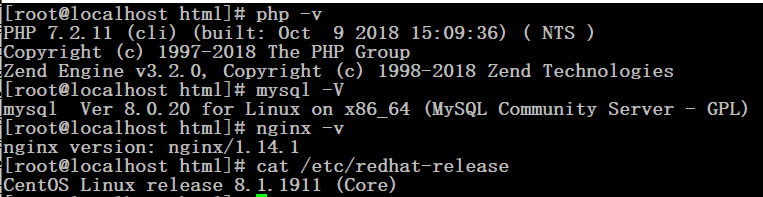
    查看一下现在的版本

    # mysql -V
    mysql  Ver 15.1 Distrib 5.5.64-MariaDB, for Linux (x86_64) using readline 5.1
    # php -v
    PHP 5.4.16 (cli) (built: Aug 11 2016 21:24:59)
    Copyright (c) 1997-2013 The PHP Group
    Zend Engine v2.4.0, Copyright (c) 1998-2013 Zend Technologies
    # httpd -v
    Server version: Apache/2.4.6 (CentOS)
    Server built:   Jul 18 2016 15:30:14
    # cat /etc/redhat-release
    CentOS Linux release 7.2.1511 (Core)

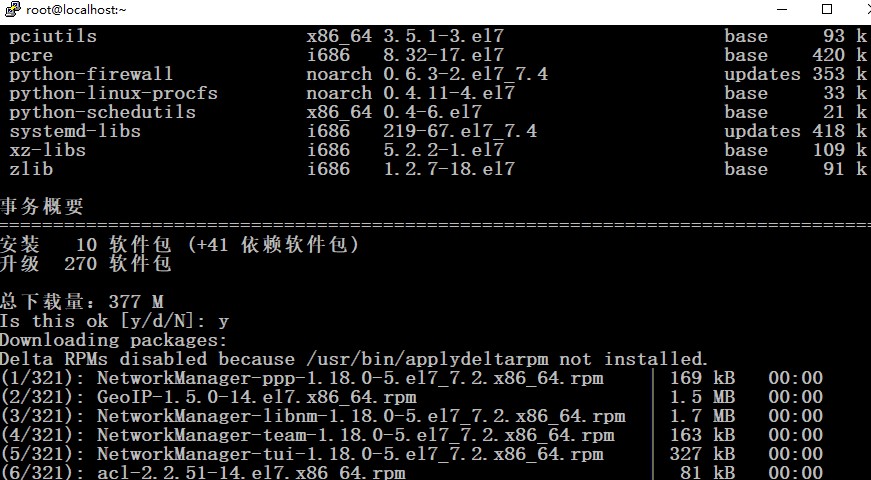
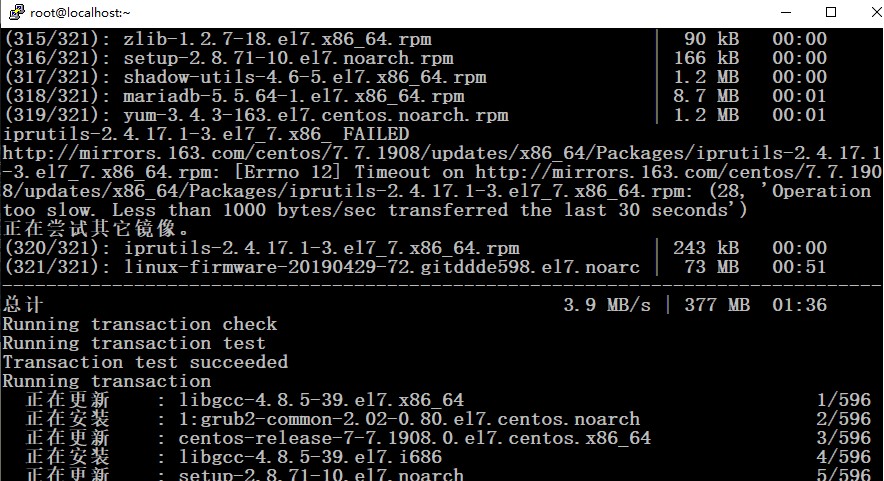
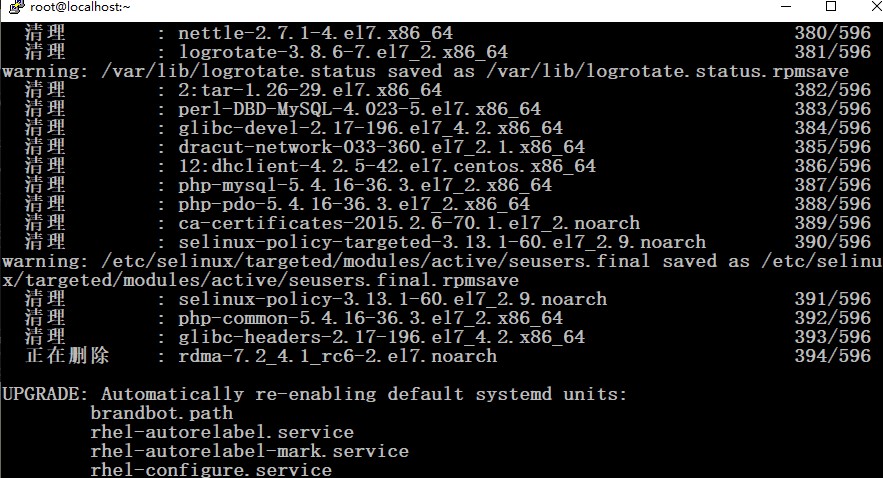
    然后运行升级

    # yum clean all
    # yum update

    中途输入y回车确认一下升级

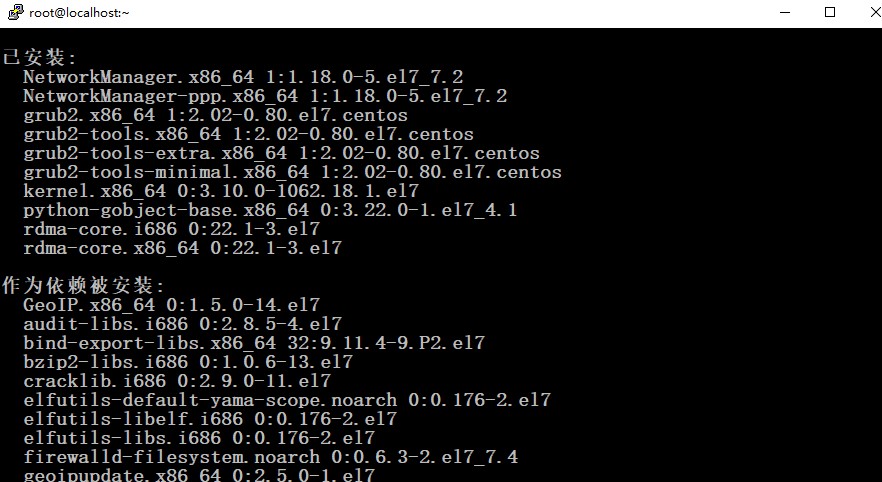
    已安装:
      NetworkManager.x86_64 1:1.18.0-5.el7_7.2
      NetworkManager-ppp.x86_64 1:1.18.0-5.el7_7.2
      grub2.x86_64 1:2.02-0.80.el7.centos
      grub2-tools.x86_64 1:2.02-0.80.el7.centos
      grub2-tools-extra.x86_64 1:2.02-0.80.el7.centos
      grub2-tools-minimal.x86_64 1:2.02-0.80.el7.centos
      kernel.x86_64 0:3.10.0-1062.18.1.el7
      python-gobject-base.x86_64 0:3.22.0-1.el7_4.1
      rdma-core.i686 0:22.1-3.el7
      rdma-core.x86_64 0:22.1-3.el7
    
    作为依赖被安装:
      GeoIP.x86_64 0:1.5.0-14.el7
      audit-libs.i686 0:2.8.5-4.el7
      bind-export-libs.x86_64 32:9.11.4-9.P2.el7
      bzip2-libs.i686 0:1.0.6-13.el7
      cracklib.i686 0:2.9.0-11.el7
      elfutils-default-yama-scope.noarch 0:0.176-2.el7
      elfutils-libelf.i686 0:0.176-2.el7
      elfutils-libs.i686 0:0.176-2.el7
      firewalld-filesystem.noarch 0:0.6.3-2.el7_7.4
      geoipupdate.x86_64 0:2.5.0-1.el7
      glibc.i686 0:2.17-292.el7
      grub2-common.noarch 1:2.02-0.80.el7.centos
      grub2-pc.x86_64 1:2.02-0.80.el7.centos
      grub2-pc-modules.noarch 1:2.02-0.80.el7.centos
      ipset.x86_64 0:7.1-1.el7
      ipset-libs.x86_64 0:7.1-1.el7
      libattr.i686 0:2.4.46-13.el7
      libcap.i686 0:2.22-10.el7
      libcap-ng.i686 0:0.7.5-4.el7
      libdb.i686 0:5.3.21-25.el7
      libfastjson.x86_64 0:0.99.4-3.el7
      libgcc.i686 0:4.8.5-39.el7
      libgcrypt.i686 0:1.5.3-14.el7
      libgpg-error.i686 0:1.12-3.el7
      libselinux.i686 0:2.5-14.1.el7
      libsepol.i686 0:2.5-10.el7
      libsmartcols.x86_64 0:2.23.2-61.el7_7.1
      libstdc++.i686 0:4.8.5-39.el7
      lz4.i686 0:1.7.5-3.el7
      lz4.x86_64 0:1.7.5-3.el7
      nss-pem.x86_64 0:1.0.3-7.el7
      nss-softokn-freebl.i686 0:3.44.0-8.el7_7
      pam.i686 0:1.1.8-22.el7
      pciutils.x86_64 0:3.5.1-3.el7
      pcre.i686 0:8.32-17.el7
      python-firewall.noarch 0:0.6.3-2.el7_7.4
      python-linux-procfs.noarch 0:0.4.11-4.el7
      python-schedutils.x86_64 0:0.4-6.el7
      systemd-libs.i686 0:219-67.el7_7.4
      xz-libs.i686 0:5.2.2-1.el7
      zlib.i686 0:1.2.7-18.el7
    
    更新完毕:
      NetworkManager-libnm.x86_64 1:1.18.0-5.el7_7.2
      NetworkManager-team.x86_64 1:1.18.0-5.el7_7.2
      NetworkManager-tui.x86_64 1:1.18.0-5.el7_7.2
      acl.x86_64 0:2.2.51-14.el7
      alsa-lib.x86_64 0:1.1.8-1.el7
      alsa-tools-firmware.x86_64 0:1.1.0-1.el7
      apr.x86_64 0:1.4.8-5.el7
      audit.x86_64 0:2.8.5-4.el7
      audit-libs.x86_64 0:2.8.5-4.el7
      authconfig.x86_64 0:6.2.8-30.el7
      avahi-autoipd.x86_64 0:0.6.31-19.el7
      avahi-libs.x86_64 0:0.6.31-19.el7
      bash.x86_64 0:4.2.46-33.el7
      bind-libs-lite.x86_64 32:9.11.4-9.P2.el7
      bind-license.noarch 32:9.11.4-9.P2.el7
      binutils.x86_64 0:2.27-41.base.el7_7.3
      biosdevname.x86_64 0:0.7.3-2.el7
      btrfs-progs.x86_64 0:4.9.1-1.el7
      ca-certificates.noarch 0:2019.2.32-76.el7_7
      centos-release.x86_64 0:7-7.1908.0.el7.centos
      chkconfig.x86_64 0:1.7.4-1.el7
      coreutils.x86_64 0:8.22-24.el7
      cpio.x86_64 0:2.11-27.el7
      cpp.x86_64 0:4.8.5-39.el7
      cronie.x86_64 0:1.4.11-23.el7
      cronie-anacron.x86_64 0:1.4.11-23.el7
      cryptsetup-libs.x86_64 0:2.0.3-5.el7
      curl.x86_64 0:7.29.0-54.el7_7.2
      cyrus-sasl-lib.x86_64 0:2.1.26-23.el7
      dbus.x86_64 1:1.10.24-13.el7_6
      dbus-libs.x86_64 1:1.10.24-13.el7_6
      device-mapper.x86_64 7:1.02.158-2.el7_7.2
      device-mapper-event.x86_64 7:1.02.158-2.el7_7.2
      device-mapper-event-libs.x86_64 7:1.02.158-2.el7_7.2
      device-mapper-libs.x86_64 7:1.02.158-2.el7_7.2
      device-mapper-persistent-data.x86_64 0:0.8.5-1.el7
      dhclient.x86_64 12:4.2.5-77.el7.centos
      dhcp-common.x86_64 12:4.2.5-77.el7.centos
      dhcp-libs.x86_64 12:4.2.5-77.el7.centos
      diffutils.x86_64 0:3.3-5.el7
      dmidecode.x86_64 1:3.2-3.el7
      dnsmasq.x86_64 0:2.76-10.el7_7.1
      dracut.x86_64 0:033-564.el7
      dracut-config-rescue.x86_64 0:033-564.el7
      dracut-network.x86_64 0:033-564.el7
      e2fsprogs.x86_64 0:1.42.9-16.el7
      e2fsprogs-libs.x86_64 0:1.42.9-16.el7
      ebtables.x86_64 0:2.0.10-16.el7
      elfutils-libelf.x86_64 0:0.176-2.el7
      elfutils-libs.x86_64 0:0.176-2.el7
      ethtool.x86_64 2:4.8-10.el7
      expat.x86_64 0:2.1.0-10.el7_3
      file.x86_64 0:5.11-35.el7
      file-libs.x86_64 0:5.11-35.el7
      filesystem.x86_64 0:3.2-25.el7
      findutils.x86_64 1:4.5.11-6.el7
      fipscheck.x86_64 0:1.4.1-6.el7
      fipscheck-lib.x86_64 0:1.4.1-6.el7
      firewalld.noarch 0:0.6.3-2.el7_7.4
      freetype.x86_64 0:2.8-14.el7
      gawk.x86_64 0:4.0.2-4.el7_3.1
      gcc.x86_64 0:4.8.5-39.el7
      gcc-c++.x86_64 0:4.8.5-39.el7
      gettext.x86_64 0:0.19.8.1-2.el7
      gettext-libs.x86_64 0:0.19.8.1-2.el7
      git.x86_64 0:1.8.3.1-21.el7_7
      glib-networking.x86_64 0:2.56.1-1.el7
      glib2.x86_64 0:2.56.1-5.el7
      glibc.x86_64 0:2.17-292.el7
      glibc-common.x86_64 0:2.17-292.el7
      glibc-devel.x86_64 0:2.17-292.el7
      glibc-headers.x86_64 0:2.17-292.el7
      gmp.x86_64 1:6.0.0-15.el7
      gnupg2.x86_64 0:2.0.22-5.el7_5
      gnutls.x86_64 0:3.3.29-9.el7_6
      gobject-introspection.x86_64 0:1.56.1-1.el7
      gpm-libs.x86_64 0:1.20.7-6.el7
      grep.x86_64 0:2.20-3.el7
      grubby.x86_64 0:8.28-26.el7
      gsettings-desktop-schemas.x86_64 0:3.28.0-2.el7
      gzip.x86_64 0:1.5-10.el7
      hostname.x86_64 0:3.13-3.el7_7.1
      httpd.x86_64 0:2.4.6-90.el7.centos
      httpd-tools.x86_64 0:2.4.6-90.el7.centos
      hwdata.x86_64 0:0.252-9.3.el7
      info.x86_64 0:5.1-5.el7
      initscripts.x86_64 0:9.49.47-1.el7
      iproute.x86_64 0:4.11.0-25.el7_7.2
      iprutils.x86_64 0:2.4.17.1-3.el7_7
      iptables.x86_64 0:1.4.21-33.el7
      iputils.x86_64 0:20160308-10.el7
      irqbalance.x86_64 3:1.0.7-12.el7
      iwl100-firmware.noarch 0:39.31.5.1-72.el7
      iwl1000-firmware.noarch 1:39.31.5.1-72.el7
      iwl105-firmware.noarch 0:18.168.6.1-72.el7
      iwl135-firmware.noarch 0:18.168.6.1-72.el7
      iwl2000-firmware.noarch 0:18.168.6.1-72.el7
      iwl2030-firmware.noarch 0:18.168.6.1-72.el7
      iwl3160-firmware.noarch 0:22.0.7.0-72.el7
      iwl3945-firmware.noarch 0:15.32.2.9-72.el7
      iwl4965-firmware.noarch 0:228.61.2.24-72.el7
      iwl5000-firmware.noarch 0:8.83.5.1_1-72.el7
      iwl5150-firmware.noarch 0:8.24.2.2-72.el7
      iwl6000-firmware.noarch 0:9.221.4.1-72.el7
      iwl6000g2a-firmware.noarch 0:17.168.5.3-72.el7
      iwl6000g2b-firmware.noarch 0:17.168.5.2-72.el7
      iwl6050-firmware.noarch 0:41.28.5.1-72.el7
      iwl7260-firmware.noarch 0:22.0.7.0-72.el7
      iwl7265-firmware.noarch 0:22.0.7.0-72.el7
      jansson.x86_64 0:2.10-1.el7
      kbd.x86_64 0:1.15.5-15.el7
      kbd-legacy.noarch 0:1.15.5-15.el7
      kbd-misc.noarch 0:1.15.5-15.el7
      kernel-headers.x86_64 0:3.10.0-1062.18.1.el7
      kernel-tools.x86_64 0:3.10.0-1062.18.1.el7
      kernel-tools-libs.x86_64 0:3.10.0-1062.18.1.el7
      kexec-tools.x86_64 0:2.0.15-33.el7
      kmod.x86_64 0:20-25.el7_7.1
      kmod-libs.x86_64 0:20-25.el7_7.1
      kpartx.x86_64 0:0.4.9-127.el7
      krb5-libs.x86_64 0:1.15.1-37.el7_7.2
      libX11.x86_64 0:1.6.7-2.el7
      libX11-common.noarch 0:1.6.7-2.el7
      libXpm.x86_64 0:3.5.12-1.el7
      libacl.x86_64 0:2.2.51-14.el7
      libattr.x86_64 0:2.4.46-13.el7
      libblkid.x86_64 0:2.23.2-61.el7_7.1
      libcap.x86_64 0:2.22-10.el7
      libcom_err.x86_64 0:1.42.9-16.el7
      libcroco.x86_64 0:0.6.12-4.el7
      libcurl.x86_64 0:7.29.0-54.el7_7.2
      libdb.x86_64 0:5.3.21-25.el7
      libdb-utils.x86_64 0:5.3.21-25.el7
      libdrm.x86_64 0:2.4.97-2.el7
      libffi.x86_64 0:3.0.13-18.el7
      libgcc.x86_64 0:4.8.5-39.el7
      libgcrypt.x86_64 0:1.5.3-14.el7
      libgomp.x86_64 0:4.8.5-39.el7
      libgudev1.x86_64 0:219-67.el7_7.4
      libjpeg-turbo.x86_64 0:1.2.90-8.el7
      libmount.x86_64 0:2.23.2-61.el7_7.1
      libndp.x86_64 0:1.2-9.el7
      libnetfilter_conntrack.x86_64 0:1.0.6-1.el7_3
      libnl3.x86_64 0:3.2.28-4.el7
      libnl3-cli.x86_64 0:3.2.28-4.el7
      libpcap.x86_64 14:1.5.3-11.el7
      libpciaccess.x86_64 0:0.14-1.el7
      libproxy.x86_64 0:0.4.11-11.el7
      libpwquality.x86_64 0:1.2.3-5.el7
      libselinux.x86_64 0:2.5-14.1.el7
      libselinux-python.x86_64 0:2.5-14.1.el7
      libselinux-utils.x86_64 0:2.5-14.1.el7
      libsemanage.x86_64 0:2.5-14.el7
      libsepol.x86_64 0:2.5-10.el7
      libsoup.x86_64 0:2.62.2-2.el7
      libss.x86_64 0:1.42.9-16.el7
      libssh2.x86_64 0:1.8.0-3.el7
      libstdc++.x86_64 0:4.8.5-39.el7
      libstdc++-devel.x86_64 0:4.8.5-39.el7
      libtasn1.x86_64 0:4.10-1.el7
      libteam.x86_64 0:1.27-9.el7
      libuser.x86_64 0:0.60-9.el7
      libuuid.x86_64 0:2.23.2-61.el7_7.1
      libxcb.x86_64 0:1.13-1.el7
      linux-firmware.noarch 0:20190429-72.gitddde598.el7
      logrotate.x86_64 0:3.8.6-17.el7
      lsscsi.x86_64 0:0.27-6.el7
      lua.x86_64 0:5.1.4-15.el7
      lvm2.x86_64 7:2.02.185-2.el7_7.2
      lvm2-libs.x86_64 7:2.02.185-2.el7_7.2
      make.x86_64 1:3.82-24.el7
      man-db.x86_64 0:2.6.3-11.el7
      mariadb.x86_64 1:5.5.64-1.el7
      mariadb-libs.x86_64 1:5.5.64-1.el7
      microcode_ctl.x86_64 2:2.1-53.7.el7_7
      mozjs17.x86_64 0:17.0.0-20.el7
      ncurses.x86_64 0:5.9-14.20130511.el7_4
      ncurses-base.noarch 0:5.9-14.20130511.el7_4
      ncurses-libs.x86_64 0:5.9-14.20130511.el7_4
      net-tools.x86_64 0:2.0-0.25.20131004git.el7
      nettle.x86_64 0:2.7.1-8.el7
      nspr.x86_64 0:4.21.0-1.el7
      nss.x86_64 0:3.44.0-7.el7_7
      nss-softokn.x86_64 0:3.44.0-8.el7_7
      nss-softokn-freebl.x86_64 0:3.44.0-8.el7_7
      nss-sysinit.x86_64 0:3.44.0-7.el7_7
      nss-tools.x86_64 0:3.44.0-7.el7_7
      nss-util.x86_64 0:3.44.0-4.el7_7
      numactl-libs.x86_64 0:2.0.12-3.el7_7.1
      openldap.x86_64 0:2.4.44-21.el7_6
      openssh.x86_64 0:7.4p1-21.el7
      openssh-clients.x86_64 0:7.4p1-21.el7
      openssh-server.x86_64 0:7.4p1-21.el7
      os-prober.x86_64 0:1.58-9.el7
      p11-kit.x86_64 0:0.23.5-3.el7
      p11-kit-trust.x86_64 0:0.23.5-3.el7
      pam.x86_64 0:1.1.8-22.el7
      parted.x86_64 0:3.1-31.el7
      passwd.x86_64 0:0.79-5.el7
      pciutils-libs.x86_64 0:3.5.1-3.el7
      pcre.x86_64 0:8.32-17.el7
      perl.x86_64 4:5.16.3-294.el7_6
      perl-DBD-MySQL.x86_64 0:4.023-6.el7
      perl-Getopt-Long.noarch 0:2.40-3.el7
      perl-Git.noarch 0:1.8.3.1-21.el7_7
      perl-Pod-Escapes.noarch 1:1.04-294.el7_6
      perl-Socket.x86_64 0:2.010-4.el7
      perl-libs.x86_64 4:5.16.3-294.el7_6
      perl-macros.x86_64 4:5.16.3-294.el7_6
      php.x86_64 0:5.4.16-46.1.el7_7
      php-cli.x86_64 0:5.4.16-46.1.el7_7
      php-common.x86_64 0:5.4.16-46.1.el7_7
      php-gd.x86_64 0:5.4.16-46.1.el7_7
      php-mysql.x86_64 0:5.4.16-46.1.el7_7
      php-pdo.x86_64 0:5.4.16-46.1.el7_7
      pinentry.x86_64 0:0.8.1-17.el7
      plymouth.x86_64 0:0.8.9-0.32.20140113.el7.centos
      plymouth-core-libs.x86_64 0:0.8.9-0.32.20140113.el7.centos
      plymouth-scripts.x86_64 0:0.8.9-0.32.20140113.el7.centos
      policycoreutils.x86_64 0:2.5-33.el7
      polkit.x86_64 0:0.112-22.el7_7.1
      postfix.x86_64 2:2.10.1-7.el7
      ppp.x86_64 0:2.4.5-34.el7_7
      procps-ng.x86_64 0:3.3.10-26.el7_7.1
      python.x86_64 0:2.7.5-86.el7
      python-libs.x86_64 0:2.7.5-86.el7
      python-perf.x86_64 0:3.10.0-1062.18.1.el7
      python-pycurl.x86_64 0:7.19.0-19.el7
      python-pyudev.noarch 0:0.15-9.el7
      python-slip.noarch 0:0.4.0-4.el7
      python-slip-dbus.noarch 0:0.4.0-4.el7
      python-urlgrabber.noarch 0:3.10-9.el7
      readline.x86_64 0:6.2-11.el7
      rpm.x86_64 0:4.11.3-40.el7
      rpm-build-libs.x86_64 0:4.11.3-40.el7
      rpm-libs.x86_64 0:4.11.3-40.el7
      rpm-python.x86_64 0:4.11.3-40.el7
      rsync.x86_64 0:3.1.2-6.el7_6.1
      rsyslog.x86_64 0:8.24.0-41.el7_7.4
      selinux-policy.noarch 0:3.13.1-252.el7_7.6
      selinux-policy-targeted.noarch 0:3.13.1-252.el7_7.6
      setup.noarch 0:2.8.71-10.el7
      shadow-utils.x86_64 2:4.6-5.el7
      shared-mime-info.x86_64 0:1.8-4.el7
      sqlite.x86_64 0:3.7.17-8.el7_7.1
      sudo.x86_64 0:1.8.23-4.el7_7.2
      systemd.x86_64 0:219-67.el7_7.4
      systemd-libs.x86_64 0:219-67.el7_7.4
      systemd-sysv.x86_64 0:219-67.el7_7.4
      tar.x86_64 2:1.26-35.el7
      teamd.x86_64 0:1.27-9.el7
      trousers.x86_64 0:0.3.14-2.el7
      tuned.noarch 0:2.11.0-5.el7_7.1
      tzdata.noarch 0:2019c-1.el7
      unzip.x86_64 0:6.0-20.el7
      util-linux.x86_64 0:2.23.2-61.el7_7.1
      vim-common.x86_64 2:7.4.629-6.el7
      vim-enhanced.x86_64 2:7.4.629-6.el7
      vim-filesystem.x86_64 2:7.4.629-6.el7
      vim-minimal.x86_64 2:7.4.629-6.el7
      virt-what.x86_64 0:1.18-4.el7
      wget.x86_64 0:1.14-18.el7_6.1
      wpa_supplicant.x86_64 1:2.6-12.el7
      xfsprogs.x86_64 0:4.5.0-20.el7
      xz.x86_64 0:5.2.2-1.el7
      xz-libs.x86_64 0:5.2.2-1.el7
      yum.noarch 0:3.4.3-163.el7.centos
      yum-plugin-fastestmirror.noarch 0:1.1.31-52.el7
      zip.x86_64 0:3.0-11.el7
      zlib.x86_64 0:1.2.7-18.el7
    
    替代:
      NetworkManager.x86_64 1:1.0.6-31.el7_2
      grub2.x86_64 1:2.02-0.34.el7.centos
      grub2-tools.x86_64 1:2.02-0.34.el7.centos
      pygobject3-base.x86_64 0:3.14.0-3.el7
      rdma.noarch 0:7.2_4.1_rc6-2.el7
    
    完毕!
    # cat /etc/redhat-release
    CentOS Linux release 7.7.1908 (Core)

    速度还是挺快的,几分钟就完事了,再查一下版本已经到7.7.1908了,为了彻底生效,还是重启一下吧。


    继续升级PHP、MySQL(MariaDB)、Apache

    数据库升级可能是最方便最顺利的,因为官方提供了yum源,按照步骤安装就行了。MariaDB官方链接点击这里

    # cd /etc/yum.repos.d
    # vim MariaDB.repo
    # MariaDB 10.4 CentOS repository list - created 2020-04-29 05:43 UTC
    # http://downloads.mariadb.org/mariadb/repositories/
    [mariadb]
    name = MariaDB
    baseurl = http://yum.mariadb.org/10.4/centos7-amd64
    gpgkey=https://yum.mariadb.org/RPM-GPG-KEY-MariaDB
    gpgcheck=1
    # yum clean all
    # yum makecache
    # 备份数据库
    # mysqldump -uroot -p --all-databases > /root/mariadb-55-backup.sql
    Enter password:
    # 卸载老版本
    # yum remove mariadb*
    Is this ok [y/d/N]: y
    # 安装新版本
    # yum install -y MariaDB-server MariaDB-client
    Is this ok [y/d/N]: y
    # systemctl start mariadb
    # systemctl enable mariadb
    # 升级数据库
    # mysql_upgrade -uroot -p
    Enter password:
    ......
    Phase 7/7: Running 'FLUSH PRIVILEGES'
    OK
    # mysql -uroot -p
    Enter password:
    MariaDB [(none)]> FLUSH PRIVILEGES;
    Query OK, 0 rows affected (0.000 sec)
    MariaDB [(none)]> exit
    Bye
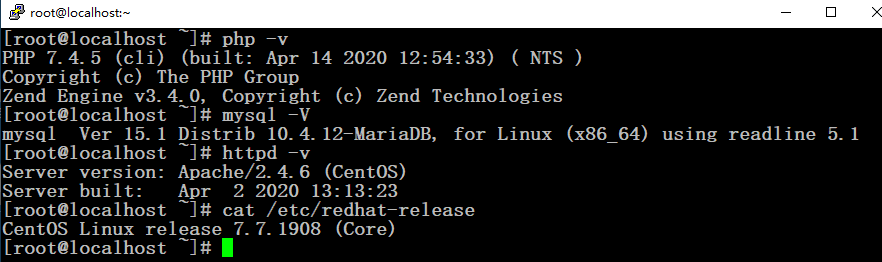
    # mysql -V
    mysql  Ver 15.1 Distrib 10.4.12-MariaDB, for Linux (x86_64) using readline 5.1
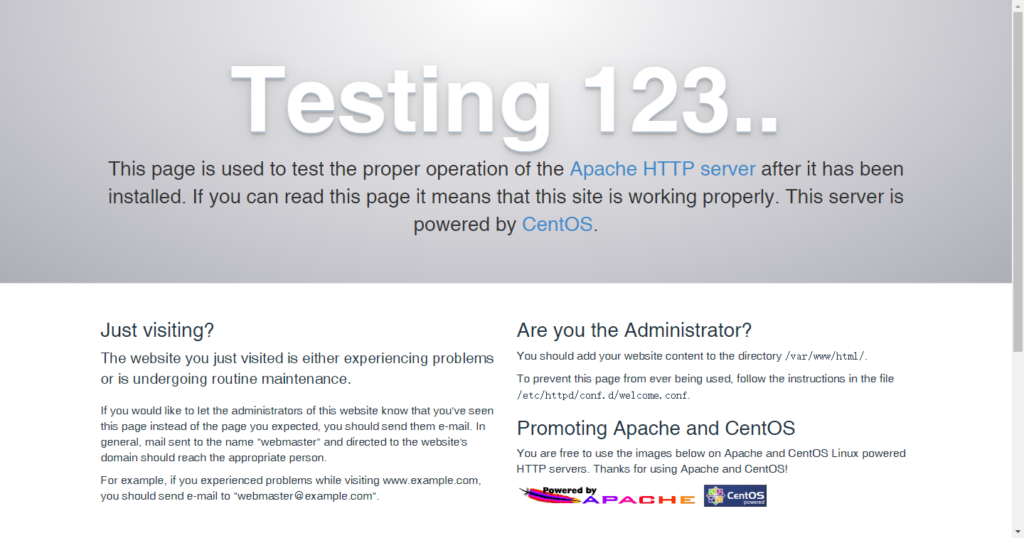
    Apache好久没用过了,官方版本好像是2.4.43(released 2020-04-01),但我几年前装的怎么就是2.4.6?本地Windows几年前装的WampServer中的版本就是2.4.37,不知道为什么,既然这样,就只能系统默认的2.4.6算了吧。

    http://httpd.apache.org/download.cgi

    # yum install httpd
    Is this ok [y/d/N]: y
    # systemctl start httpd
    # systemctl enable httpd

    继续升级PHP,主要是yum源不好找啊,为什么MariaDB官方能提供,其它的就不行呢?主要是centos更新了。

    # rpm -qa |grep php
    # yum remove -y php*
    # yum info php //查询到可安装的php版本是5.4.16
    # wget -O /etc/yum.repos.d/CentOS-Base.repo http://mirrors.aliyun.com/repo/Centos-7.repo
    # yum clean all
    # yum makecache
    # yum info php //还是没变,换一个repo源

    试了阿里、清华、网易、epel多个源,可能只是官方的镜像吧,都是5.4.16。就算这样,更新centos系统了,也该升级一下相应软件的版本吧?不过centos8中好像默认是7.2以上了。

    最后找到remi这个源,还挺丰富的,各个版本都有,安装也顺利,国外的,就是不熟悉,不知道来源安全与否。

    # yum install https://rpms.remirepo.net/enterprise/remi-release-7.rpm
    Is this ok [y/d/N]: y
    # cd /etc/yum.repos.d
    # vim remi-php74.repo //安装哪个版本就修改哪个

    将此区块enabled=0修改为enabled=1,保存退出。

    [remi-php74]
    name=Remi's PHP 7.4 RPM repository for Enterprise Linux 7 - $basearch
    #baseurl=http://rpms.remirepo.net/enterprise/7/php74/$basearch/
    #mirrorlist=https://rpms.remirepo.net/enterprise/7/php74/httpsmirror
    mirrorlist=http://cdn.remirepo.net/enterprise/7/php74/mirror
    enabled=1
    gpgcheck=1
    gpgkey=file:///etc/pki/rpm-gpg/RPM-GPG-KEY-remi
    # yum clean all
    # yum makecache
    # yum info php //此时可以看到php7.4.5的版本了。
    # yum install php php-fpm
    Is this ok [y/d/N]: y
    # systemctl start php-fpm
    # systemctl enable php-fpm
    # systemctl restart httpd
    
    成功!